Captions on the room's screens
What's said on stage, written live on LED walls, monitors and the speaker's confidence monitor. In the speaker's language or translated.
The teleprompter is a web page: open it on the computer connected to the screen, in a smart TV's browser or in the video mixer. Our AI engine writes the text as the person speaks, and a technician monitors it from Milan. Nothing to install in the room.
- 12rooms captioned in parallel, over three daysFORUM PA 2026, Rome
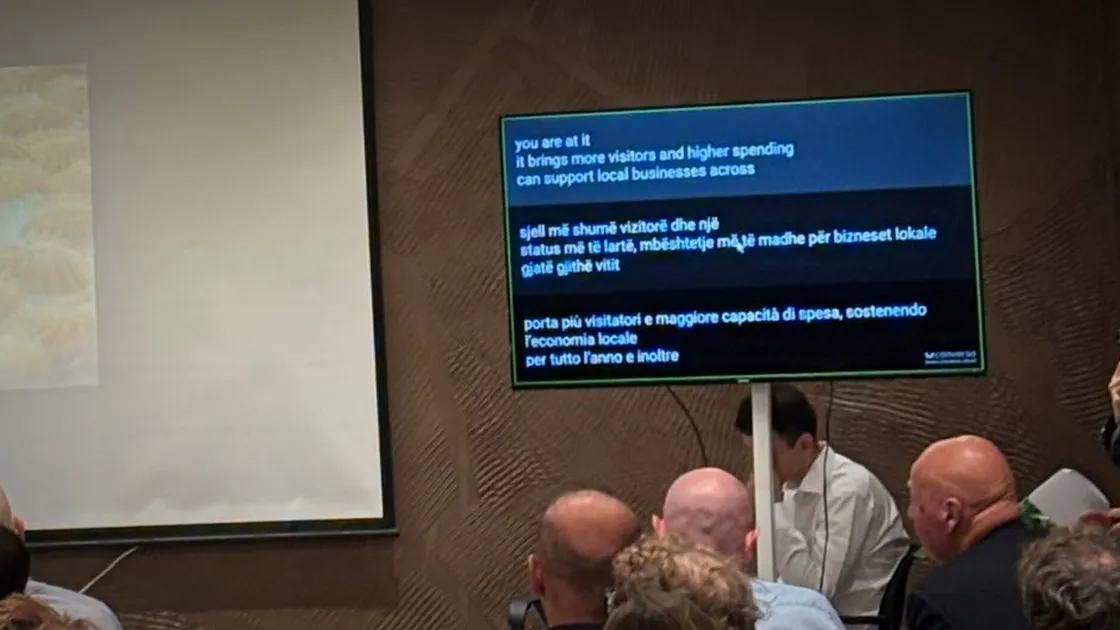
- 3languages on the same screen, one per bandBalkans Sea Fair 2026, Albania
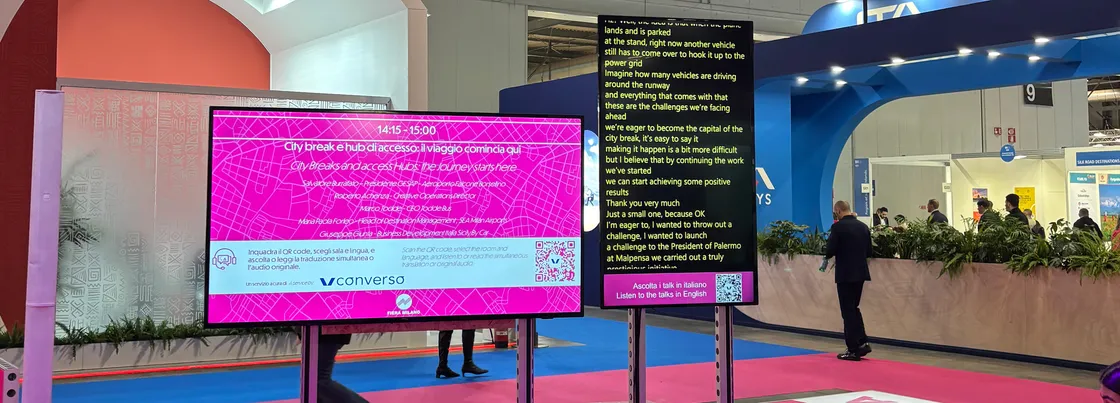
- 6different control rooms, each with its own screensBIT 2026, Fiera Milano
How the text gets onto the screen
Four steps, and we handle three of them. All we ask of the room's AV desk is to send us the audio and put a page on screen.
Where the text goes
On any screen that can show a web page, and into any control room that can take one as a source.
LED walls and projectors
Large text for the whole room. Next to the slides or in a band underneath.
Monitors and smart TVs
All it takes is the TV's browser and Wi-Fi: no computer behind it, no video cable. At entrances and in exhibition areas too.
The speaker's confidence monitor
A confidence monitor in front of the stage, for speakers who want to see what the audience is getting.
Lower thirds and streaming
In OBS and vMix the page goes in as a browser source. With chroma key, the text is overlaid on the video.
The event's website or app
With an iframe, the captions sit under the stream's video, on the page the audience already has open.
The audience's phones
The same captions can be read in the WebApp by scanning a QR code. For people far from the screen, or who want another language.
Several languages, one screen
When the audience is mixed, the languages share the same screen, each in its own band. People walking into the room don't have to choose anything: they look at the screen and find theirs.
Languages side by side, stacked or in a grid, each with its own label
A colour for each language, so it's recognisable at a glance
An extra language requested once the event is under way goes on the WebApp, without touching the screen that's already running
Text made to be read, not a raw transcript
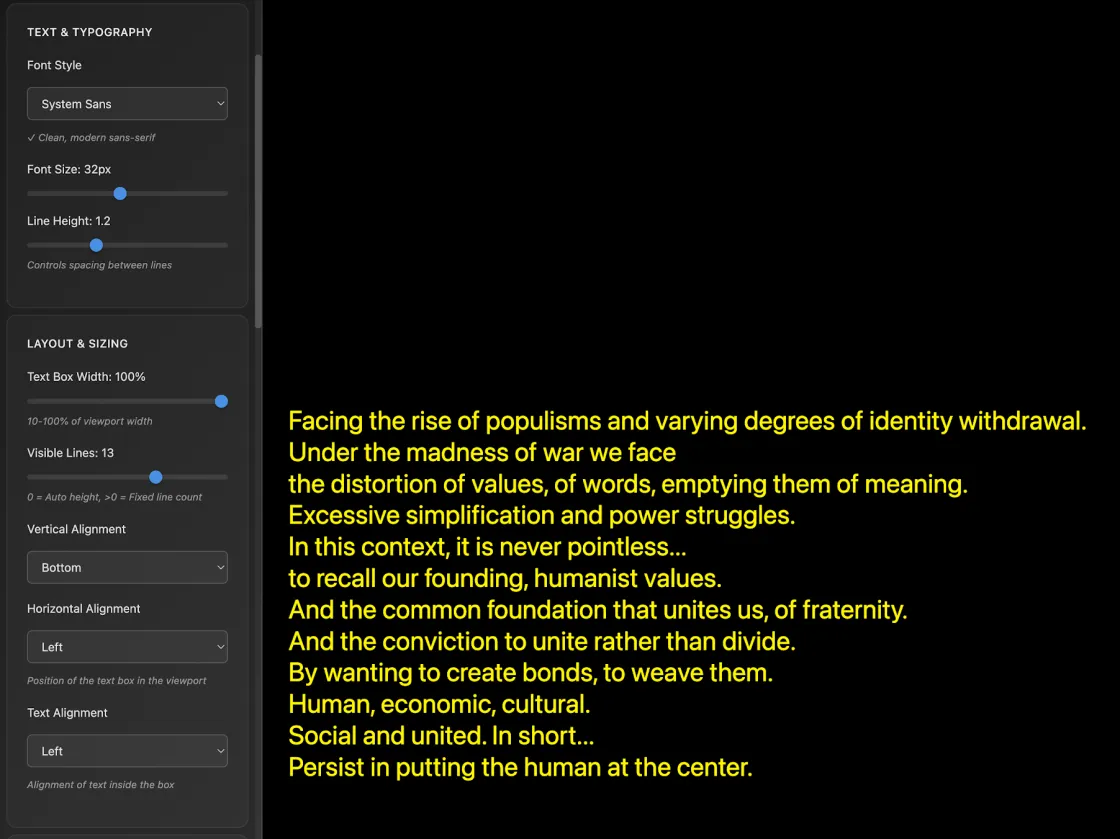
Speakers hesitate, repeat themselves, change their minds mid-sentence. The engine works in editorial mode: it strips out fillers and false starts, and writes text that reads like a subtitle.
You can show only finished sentences, without the corrections on the fly
Sentences spoken a few seconds apart merge into a single block
Subtitle-style punctuation: no capital at the start of the line, final full stop removed or turned into an ellipsis
Numbers, dates and amounts in figures: “€25”, not “twenty-five euros”
Profanity can be masked
The event's look
The caption screen is part of the stage design. We dress it in the event's colours and branding, screen by screen.
System, Google or high-legibility fonts, with colours and sizes chosen for the audience's viewing distance
Logo and QR code over the text, for example to open the WebApp
A fixed banner with the session title or a sponsor's logo
A standby screen with an image, when nobody is speaking
The latest lines highlighted, to follow the text as it scrolls
One screen or every screen
Teleprompter Standalone
One link per screen, styled from the screen itself. The right fit for an OBS or vMix control room, a lower third, the speaker's monitor.
Explore Teleprompter StandaloneTeleprompter Manager
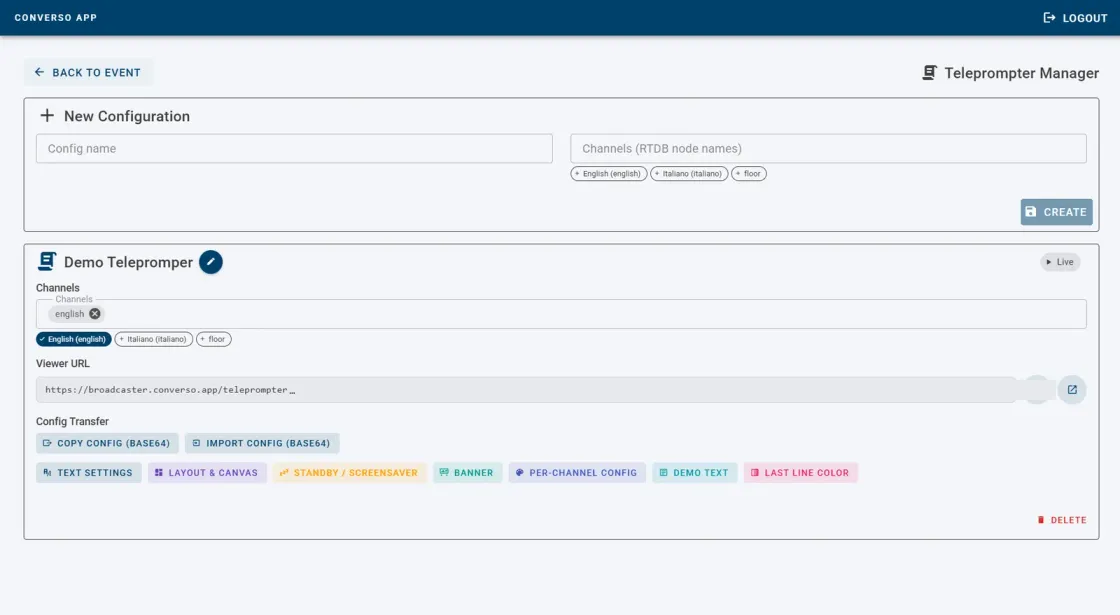
A single page controls every screen at the event: languages, look, logo, standby. Changes reach screens that are already open, with no reload.
Explore the Teleprompter ManagerWho runs it
We set it up before the event and run it during, from the RSI Hub in Milan: nobody in the room needs to touch the screen. If your AV company wants to change the look or switch to standby on its own, we give it the credentials.
At FORUM PA 2026, each room technician had two addresses: one to send us the audio, one to put on screen. Twelve rooms over three days, without a single one of our technicians in Rome.
For deaf and hard-of-hearing audiences
Captions in the speaker's language make the event accessible to people who are deaf or hard of hearing, and help anyone following in a language that isn't their own. On the room screen they reach everyone, without anyone having to ask. For a public body it's a requirement: we plan it like the audio and the lighting.
Live captions for accessibilityAt events
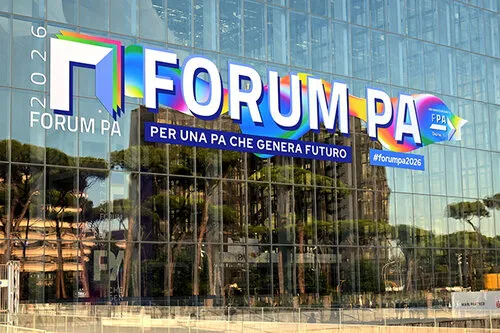
Twelve rooms, each with its own teleprompter projected by the control room.
Twelve rooms captioned, from Milan. FORUM PA 2026
Rome, Roma Convention Center La Nuvola · June 2026Read the case study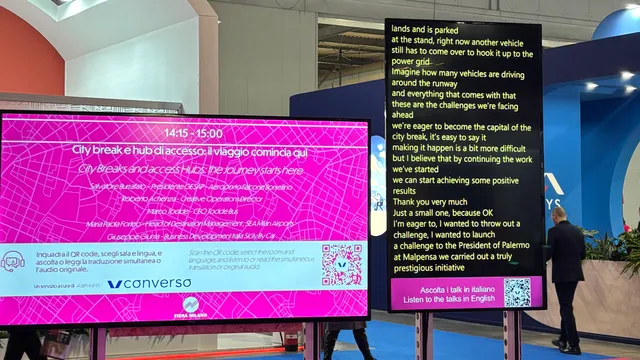
LED walls, projectors, lower thirds and the teleprompter for speakers, across six different control rooms.
BIT 2026: RSAI Interpretation and Silent Meeting in Open Spaces
Rho Fiera Milano · February 2026Read the case study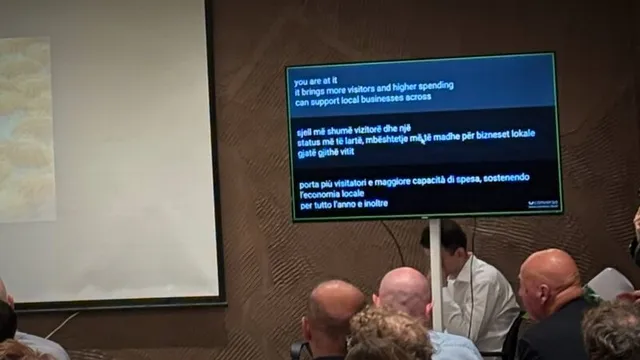
Three languages in three bands on a smart TV, set up from Milan.
Balkans Sea Fair 2026 — Three languages on a single screen
Marina Orikum, Bay of Vlorë (Albania) · October 2026Read the case study
Five languages in 48 hours: listening on phones and captions on the room monitor.
Mediterranean Games 2026: Five Languages in Taranto with 48 Hours' Notice
Taranto, Puglia · August 2026Read the case studyWhat's needed, and who brings it
What we ask of the room is almost always already at the AV desk. We bring the rest.
In the room
Set up by the AV company or the venue
A screen with a browser: a connected computer, a smart TV or the video mixer
The floor feed from the mixer, sent with the Floor-In from a computer at the AV desk with a sound card: the AV company usually has one already
A network cable for the floor feed. For the smart TV, Wi-Fi is enough
Converso
Before and during the event
A link for each screen, in the event's look
The AI engine, primed with Context Training on the event's names and terms
Throughout the event, a linguist and a technician following the text from the RSI Hub
Teleprompter Manager credentials, if the AV company wants to change the look or switch to standby on its own
The audience
Nothing to do
They read the room screen, without asking for anything
Anyone who wants can get the same captions on their phone, in the WebApp via a QR code
The details are in the technical sheet we send before the event. We talk to the venue's or the AV company's technician ourselves: you just put us in touch.
How many screens does your event have?
Tell us about the rooms, screens and languages: we'll tell you how to set them up.
Request a quote