Every screen at your event, from a single page
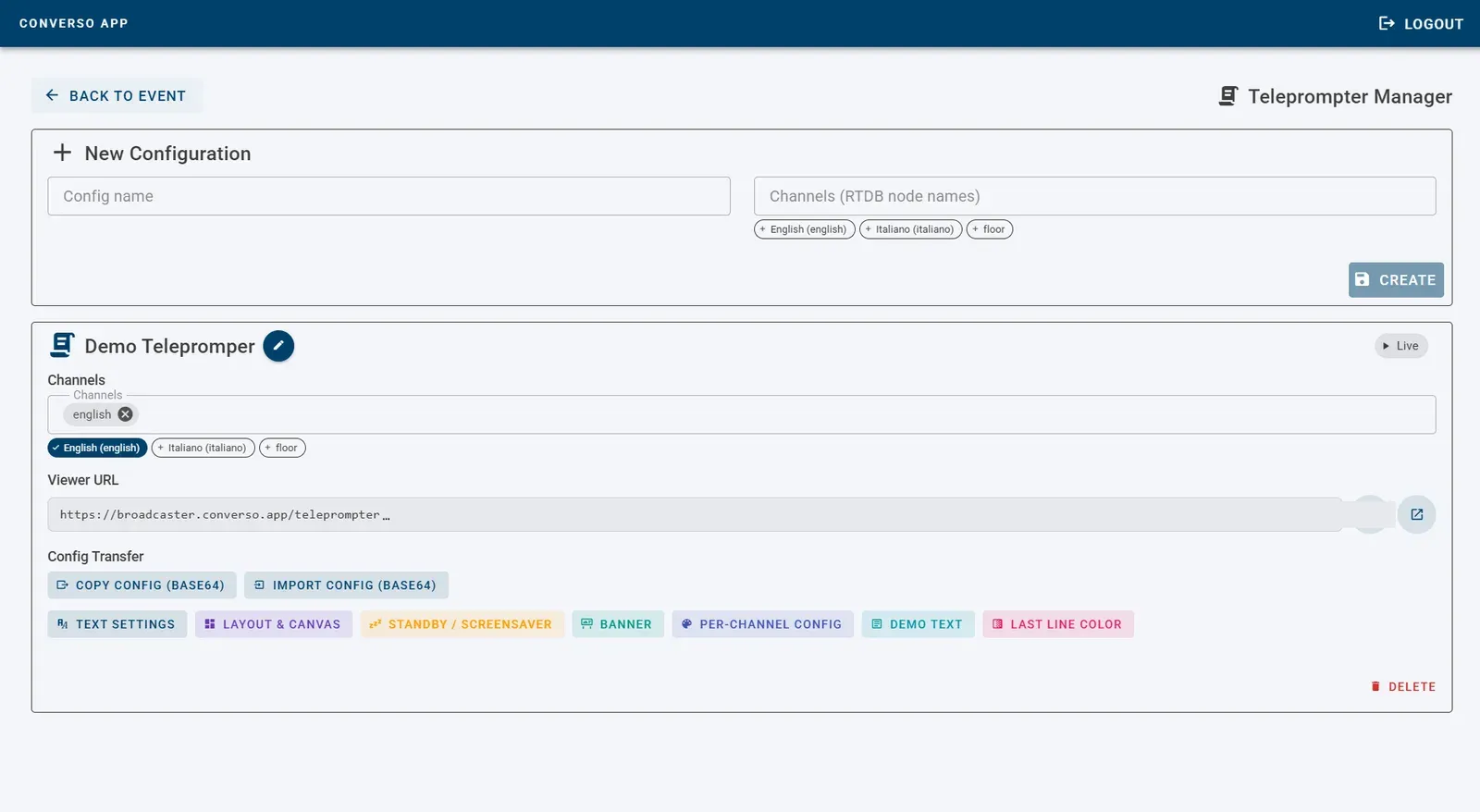
The Teleprompter Manager controls an event's teleprompters: what they show, how they show it, and when they pause.
Every screen showing speech as text, in the original language or translated, is a configuration: an LED wall, a room monitor, a smart TV, an input on the video mixer, a frame embedded in a web page with an iFrame. From one page in Google Chrome you choose the channels, the look, the logo and the QR code, and switch between live and standby. Changes reach the screen straight away, with no reload.
How it works
- 1
Create a configuration
A configuration is one video output, for example «Main stage». You give it a name and pick the channels to show: the original language, one or more translations.
- 2
Open the link on the screen
Each configuration has its own link. Open it in the browser of the computer connected to the monitor or mixer, or directly in a smart TV's browser. For a web page, embed it with an iFrame, even several with different layouts.
- 3
Adjust it live
Changes save themselves and reach the screen that is already open, with no page reload. One button switches between live and standby and back.
What you can adjust
Settings are grouped in sections, one per button, and apply to a single configuration: every screen can have its own look.
Text
System, Google or high-legibility fonts, size, upper case, bold, colours, line spacing, visible lines and alignment. You can show only final text and hide the provisional words.
Layout
Full screen or a fixed size in pixels. Several channels side by side, stacked or in a grid, with labels and spacing: for example three languages in three bands on the same monitor.
Logo and QR code
Placed over the text, inside or outside the text area, with position, size, opacity and colours. Images are uploaded directly.
Banner
A fixed band at the top, bottom or side, with an image or HTML content: for example the session title or a sponsor's logo.
Standby
An image or a custom screen in place of the text. Switch it on with a button, or let it start by itself after the number of seconds you choose without new text.
Colours per channel
Each language can have its own colours and its own message when the channel is empty, so it is easy to spot.
Latest lines highlighted
A colour and a background on the lines that have just arrived, to follow the text as it scrolls.
Demo text
Scrolls a sample text so you can check the look before anyone speaks. Switch it off before going live.
From one event to the next
Text settings can be copied from one configuration and applied to another, even in a different event.
In the event's website or app
The teleprompter drops into any web page, web app or event app with a standard iframe. Your developer adds it once; what it shows and how it looks are set from here, even mid-event, without reloading the page or touching the code.
One address per destination
Each configuration has its own Viewer URL, and every change reaches every screen showing it straight away, audience phones included. The event app, the LED wall and the stream each get their own configuration.
Your page sets the size
A fixed height, or the whole of a box under the video player. With 40 px text, 1.2 line height and two lines, around 120 px is enough.
Native apps too
Instead of an iframe, a WebView loads the same address. The teleprompter only shows text: no microphone, camera or audio permissions needed.
We send your developer the integration guide, with code samples and notes on sandboxing and Content Security Policy.
<iframe
  src="https://broadcaster.converso.app/teleprompter/cKXqwZhMGnyoxx9UqrDT/config/ECDWRPSx95hLzDjPUw4i"
  style="display:block; width:100%; height:120px; border:0;"
title="Converso live captions"></iframe>Who uses it
You or your AV company
With the credentials we give you, your control room or AV company runs the screens on its own: changes the look, pauses the text, adds a channel.
Our technician, remotely too
From the RSI Hub in Milan, a Converso® technician prepares the configurations before the event and steps in during it, with no one in the room touching the screen.
The Teleprompter Manager needs Google Chrome. The screen only needs a browser and an internet connection.
The teleprompter at events
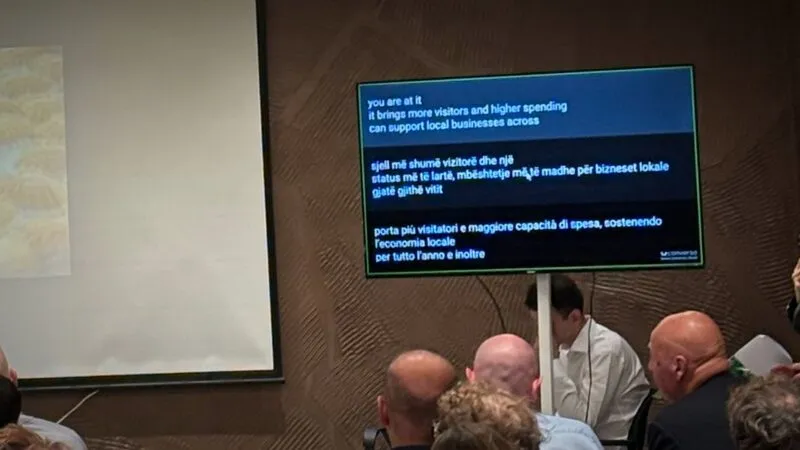
Three languages in three bands on a smart TV, adjusted from the RSI Hub in Milan.
Balkans Sea Fair 2026 — Three languages on a single screen
Marina Orikum, Bay of Vlorë (Albania) · October 2026Read the case study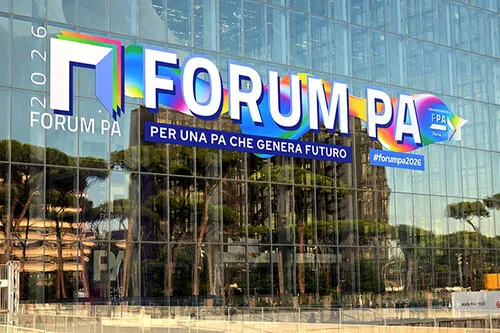
Twelve rooms, each with its own teleprompter projected by the control room.
Twelve rooms captioned, from Milan. FORUM PA 2026
Rome, Roma Convention Center La Nuvola · June 2026Read the case studyHow many screens does your event have?
Tell us about rooms, screens and languages: we will tell you how to set them up.
Get in touchRelated